This guide takes your handipay invoices into Sage 50 Accounting, Canadian edition, the one installed on your computer. handipay exports them as an .IMP file, the file Sage 50 imports transactions from, and Sage 50 turns each invoice in it into a sales invoice.
We tried these steps in Sage 50 Accounting, Canadian edition 2026.2. Other versions are usually the same, though a menu can sit in a slightly different place.
For the handipay side, see exporting to Sage 50. Using Sage Accounting, the online one? See the Sage Accounting guide.
Set up Sage 50 once
Before your first import, set up three things, each explained below: the item numbers, your tax names and rates and your customers' names. After that, imports run without stopping on every line.
Item numbers and service items
Every line in the file carries an item number, which tells Sage 50 what the line is for. There are six, one for each kind of line on a handipay invoice:
| Line on the invoice | Item number |
|---|---|
| Labour | LABOUR |
| Service | SERVICE |
| Materials | MATERIAL |
| Fees, such as a service fee | FEE |
| Discount | DISCOUNT |
| Adjustment | ADJUSTMENT |
If Sage 50 doesn't know an item number, it stops on every line that carries it and asks you to pick an item or an account. It doesn't remember your answer for next time. So set up the six item numbers once, as service items. A service item is something you sell but don't keep in stock, such as an hour of labour.
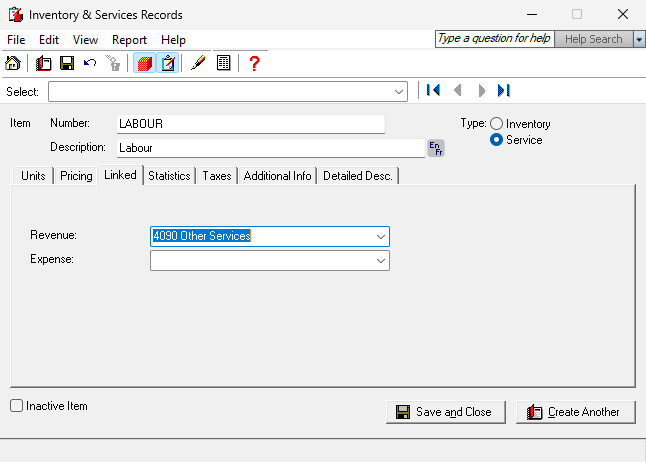
Open the Inventory & Services module and add a new item. The button names can differ a little between versions.
Type the item number exactly as in the table, in capitals.
Set its type to Service.
Give it a description you'd be happy to see on your customer's invoice, such as Labour. Imported lines show this description, not the wording on the invoice in handipay.
Choose its revenue account, the account that records your sales income. Labour and materials can go to different ones.
Save it, and do the same for each item number in the table.
Then tell Sage 50 which customers use these item numbers. Open each customer you invoice, go to their Import/Export tab and tick This customer uses my item numbers on orders. Their imports then run without asking.
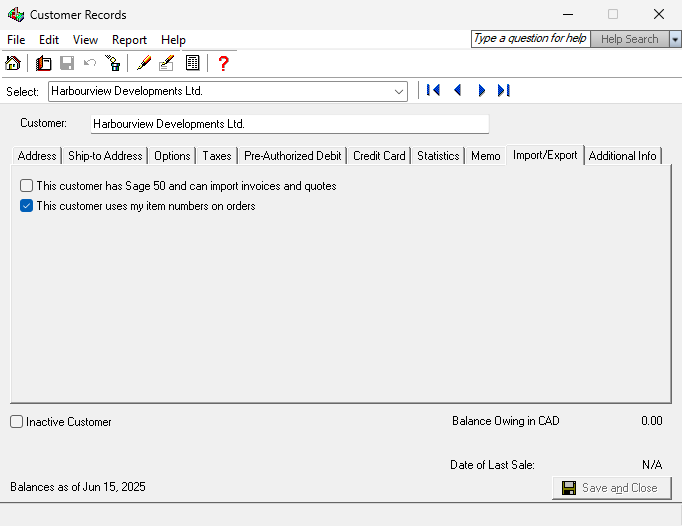
There's another way, if you'd rather not create items: on each customer's Import/Export tab, match each item number to the revenue account it should go to. Sage 50 keeps those matches for that customer.
A customer Sage 50 has never seen has none of this set up yet, so the first time you import their invoices, Sage 50 asks you to pick an item or an account for each of their lines. Once that import is done, tick the box (or set the matches) on their Import/Export tab, and their next import runs without asking.
Tax names and rates
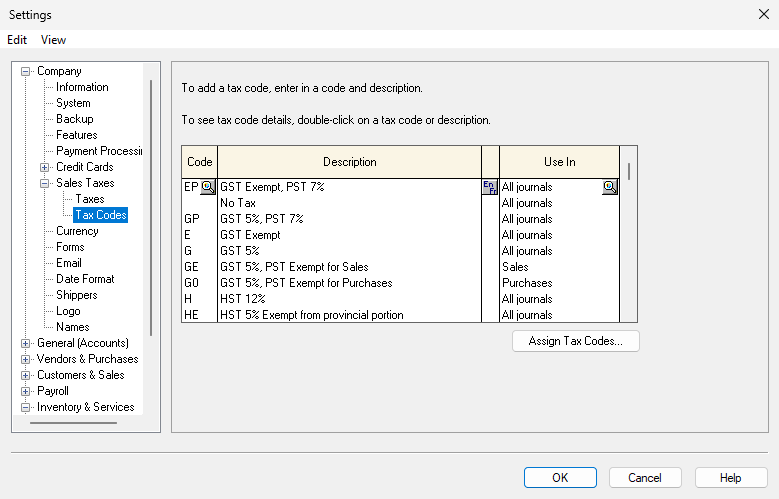
Each line in the file names its taxes and their rates, such as GST at 5% or HST at 13%. Sage 50 looks for a tax code in your company with that tax's name and that rate. If it can't find one, it refuses the invoice.
In Sage 50, open Setup › Settings, then Company › Sales Taxes. Your tax names are under Taxes, and the rates under Tax Codes.
handipay's file calls the taxes
GST,HST,PSTandQST. Manitoba's RST goes into the file asPSTunless you change its name. If your Sage 50 names them differently, type its names into the tax name boxes of handipay's Sage 50 export, such as TPS and TVQ, if that is what your Sage 50 calls them. An owner, accountant or manager can save them as the default, so every Sage 50 export starts with them. See exporting to Sage 50.Check that Tax Codes has a code for each rate on your invoices. An invoice with 13% HST needs a tax code with HST at 13%, and one at 12% won't do.
Fee and discount lines carry no tax, and Sage 50 takes them as they are.
Customer names
Sage 50 finds the customer for each invoice by name. Capital letters don't matter, so ACME Roofing finds Acme Roofing, but everything else has to match: the spelling, the spaces and the punctuation. A Sage 50 name is 52 characters at most.
Each invoice goes out under the Sage 50 customer name saved on that customer in handipay, or under their name in handipay if nothing is saved. Two ways to save them:
One at a time, on each customer's page in handipay. See matching your customers to your accounting software.
All at once, by importing the customer list Sage 50 exports. handipay saves each customer's Sage 50 customer name from it. See importing your customer list.
Once you've saved a Sage 50 customer name for any customer in a file, the export also tells you how many invoices in it are for customers still without one.
Export from handipay
Sage 50 only accepts invoices dated inside a range it sets from your company's fiscal year. If an invoice falls outside it, Sage 50's message names the dates. So when you choose the invoices to export, keep their dates inside that range.
Then export with the Sage 50 tile. A Sage 50 file holds up to 1,000 invoices: see how a big export is split into files.
Your browser saves the .IMP file, usually in your Downloads folder. It has to be on the computer that runs Sage 50, so if you exported on your phone or another computer, move it across first, for example by emailing it to yourself.
Names with French and other Western European accents, such as Rénovations Côté, arrive in Sage 50 as they are. Other characters, such as an emoji, can't go into the file: handipay replaces them and tells you how many.
Import into Sage 50
Back up your Sage 50 company first. Look under the File menu for the backup.
If Sage 50 asks for single-user mode, switch to it. That's also under the File menu.
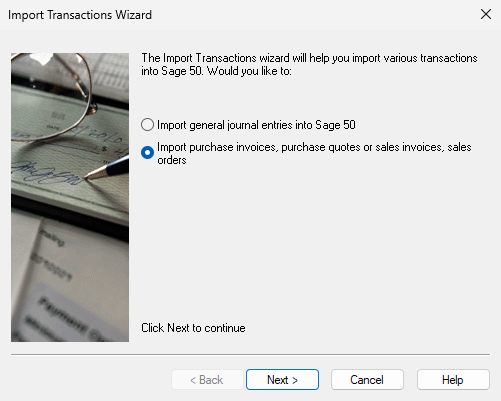
Open File › Import/Export › Import Transactions.
Choose Import purchase invoices, purchase quotes or sales invoices, sales orders and press Next. Sage 50 starts with the general journal option chosen, and that one reads the file as journal entries, so the import fails.
Choose the .IMP file you exported from handipay, and carry on through the import.
Sage 50 may stop with a message along the way: see what Sage 50's messages mean. An invoice Sage 50 refuses doesn't stop the rest of the file.
Check the Sales Journal
When the import ends, Sage 50 shows a summary. Don't go by the summary alone: it can say some invoices failed when Sage 50 did record them. The Sales Journal shows what really went in.
Open Reports › Journal Entries › Sales. If you don't see it, open Reports › Transaction Details › Sales instead, which shows the same entries as Sales Transactions.
Choose the dates of the invoices you imported, and look for each invoice by its number or its amount.
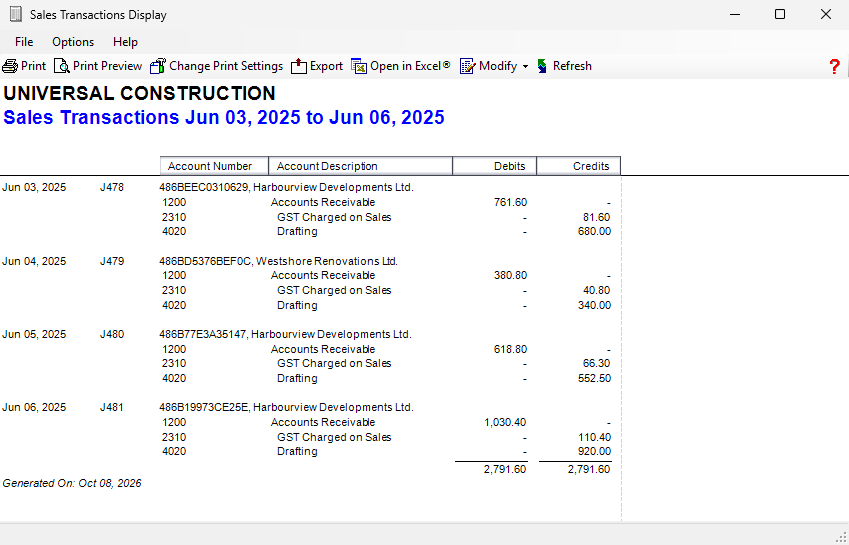
Missing a few? Fix what stopped them (see what Sage 50's messages mean) and import the same file again. Sage 50 refuses an invoice number that customer already has, so the second import only adds the invoices that are missing. It shows one message for each invoice that's already there.
Record payments
Every invoice arrives in Sage 50 unpaid, even one your customer has already paid in handipay. Record each payment in Sage 50, the way you record any customer payment, so your receivables (what your customers owe you) match.
If Sage 50 shows a message
The messages you may meet, and what each one means:
- The date must be between …
- Line N does not contain compatible tax information
- This invoice number already exists for this customer
- Select customer
- Sage 50 asks for an item or an account on every line
- Line 1 is missing a source code or a comment
- Sage 50 could not import some sales invoices…
"The date must be between …"
The invoice is dated outside the dates Sage 50 accepts, which the message names, and Sage 50 won't take it. Export again with your invoices inside those dates. For an invoice from an older year, ask your bookkeeper how to record it.
"Line N does not contain compatible tax information"
N is the line number in the file handipay made, counting from the top. It means that line has a tax whose name or rate your Sage 50 company doesn't have. Compare them as in tax names and rates.
- A different name: change it in handipay's Sage 50 export, and export the file again.
- A rate Sage 50 doesn't have: set up a tax code with that rate in Sage 50, with your bookkeeper if you're not sure.
Then import the file again. Sage 50 only adds the invoices that are missing.
"This invoice number already exists for this customer"
That invoice is already in Sage 50, from an earlier import. Nothing to do: carry on.
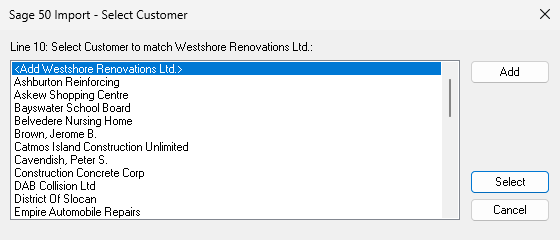
"Select customer"
Sage 50 doesn't have a customer by the name on this invoice. Press Add to add them as a new customer, or pick the right customer from the list, if Sage 50 offers one. Then save their Sage 50 customer name in handipay, so the next export matches without asking. If the invoice then fails for another reason, Sage 50 doesn't keep the customer it just added.
Sage 50 asks for an item or an account on every line
The item numbers aren't set up for this customer yet. Pick the account for each line to finish this import, then set the customer up as in item numbers and service items.
"Line 1 is missing a source code or a comment"
The general journal option was chosen, so Sage 50 read the file as journal entries. Start the import again and choose Import purchase invoices, purchase quotes or sales invoices, sales orders.
"Sage 50 could not import some sales invoices…"
This summary can appear even when Sage 50 recorded the invoices. Check the Sales Journal to see which ones went in.
Still stuck? Email [email protected].