Already keep your customers in Sage 50, Sage Accounting or a spreadsheet? Bring the whole list into handipay in one go. handipay finds the customers you already have and can save each one's accounting ID: the name or code Sage uses for that customer. It can also add the customers it doesn't have yet.
Accounting IDs are what let your invoice exports land on the right customer. See matching your customers to your accounting software.
Before you start
Owners, accountants and managers can import. The Import button is on the Customers page.
- You need your customer list as a file, from your accounting software or a spreadsheet. The next part says how to get it.
- handipay reads the file on your own device, and nothing changes in handipay until you press Import at the end.
- Email addresses make the best matches. If your list has them, keep them in the file.
Get the file out of your accounting software
Each accounting software exports its customer list its own way. These are the usual ways in. If your screen looks different, look for an Export button on your customer or contact list.
| If you use | Usually | The file |
|---|---|---|
| Sage Accounting | Open Customers and export all customers. | A CSV file. |
| Sage 50 (Canadian edition) | Choose File › Import/Export › Export Records, then Customers. | A text file (.txt). |
handipay reads .csv, .txt and .xlsx files. An older Excel file (.xls) can't be read: open it in Excel and save it again as .xlsx or CSV.
From any other program, export your customer or contact list as a CSV file (a plain spreadsheet file that Excel can open) or an Excel file. Any file with an email or a name column works. You pick the columns yourself.
Upload and check the matches
Open Customers and press Import. The import has four steps, and the page says which one you're on.
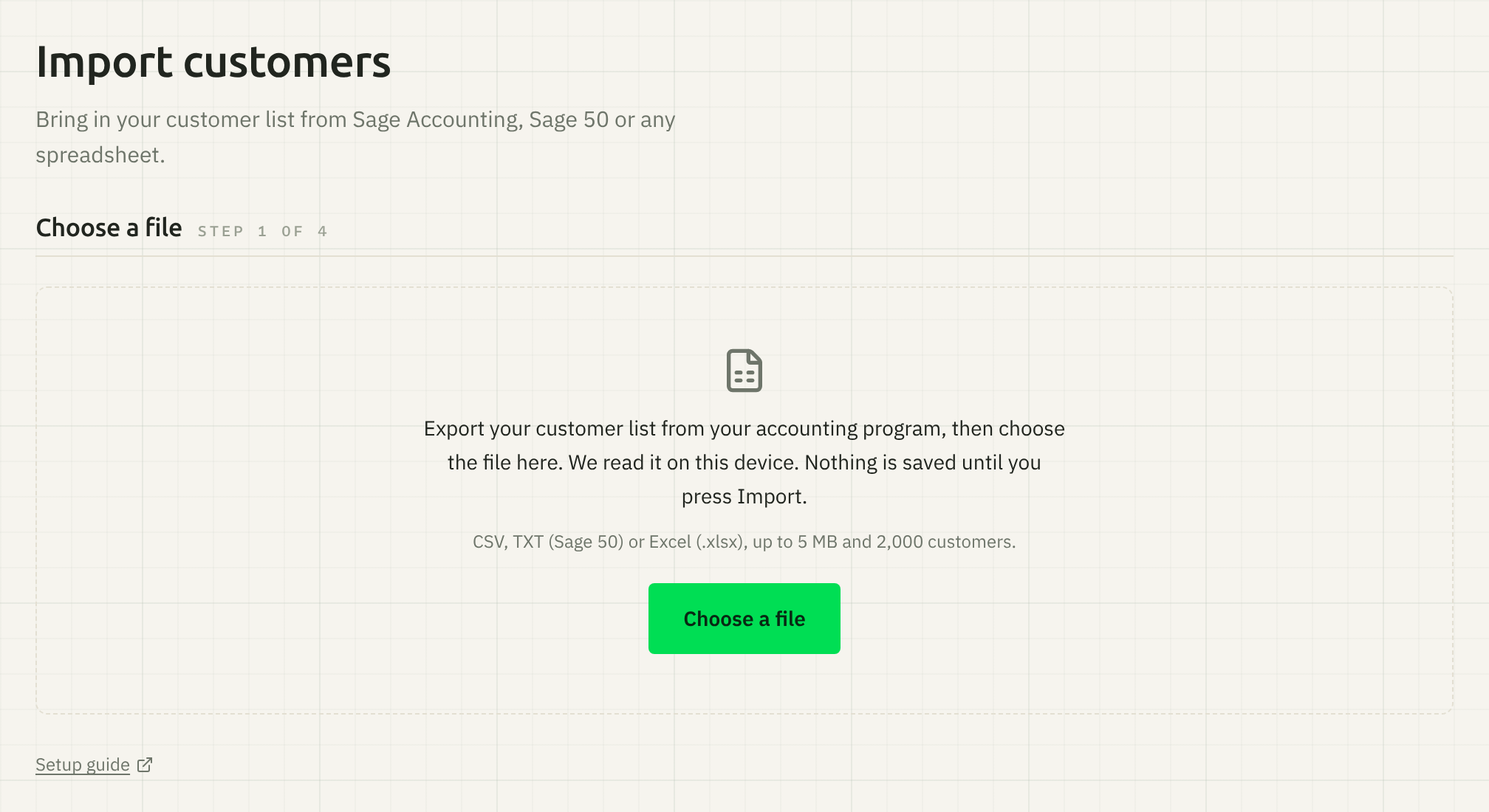
Choose a file: press the Choose a file button and pick your file, or drag the file into the dashed box.
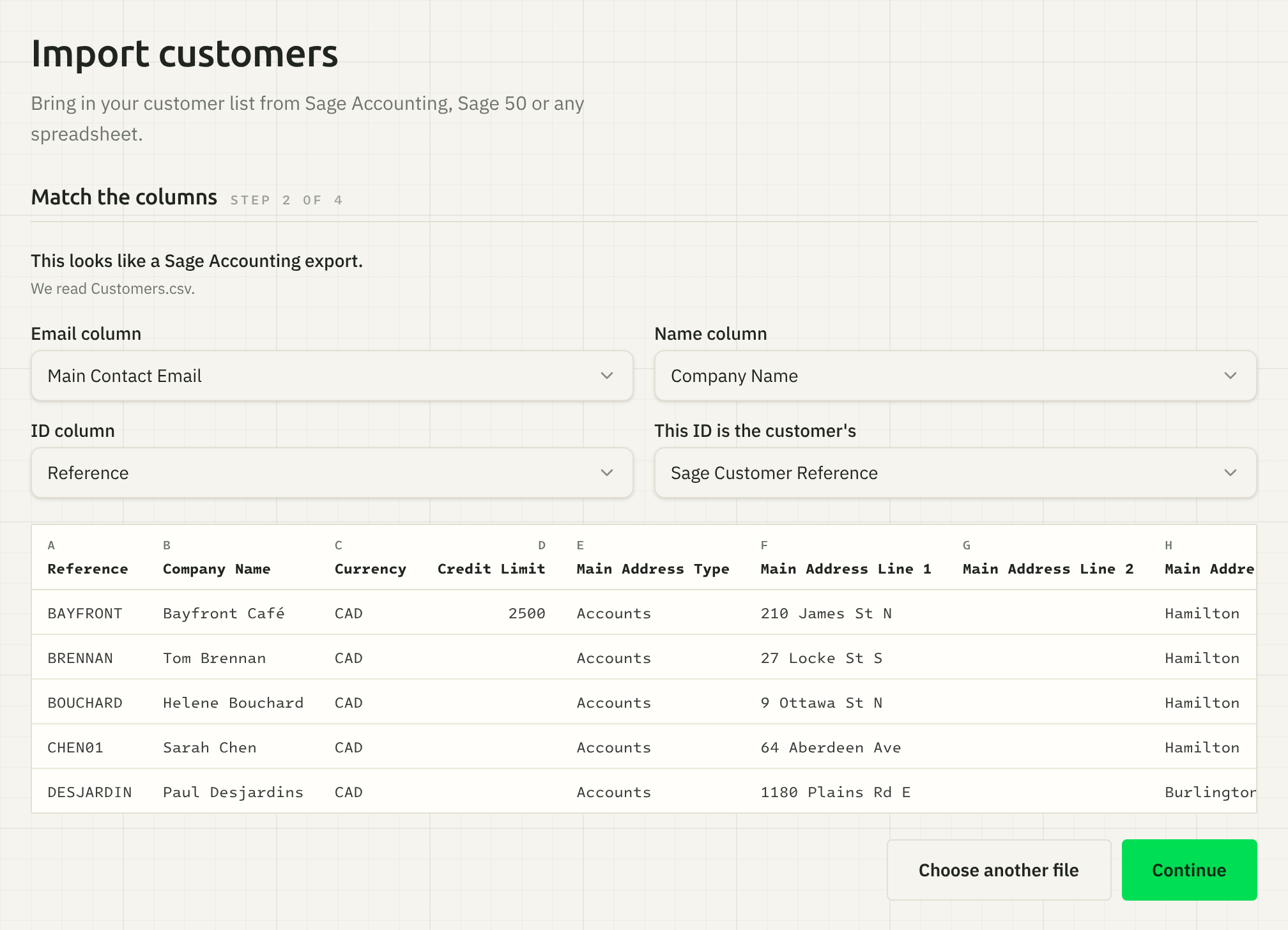
Match the columns: when handipay recognizes a Sage Accounting or Sage 50 file, it says which one made it and fills in the email, name and ID columns for you. With any other file, it says "We couldn't tell which program made this file. Pick the columns below." Check each column, change any that are wrong, then press Continue.
Check the matches: handipay checks every row against your customer list and sorts the rows into the groups below. Pick a group to see its rows, and decide what happens to the ones that need you. The line beside the Import button says what it will do, such as how many IDs it saves and how many new customers it adds. When that looks right, press Import.
Import: handipay brings the rows in and then shows what it did. If any rows weren't imported, download them: each comes with the reason.
The groups, and what each one means:
| Group | What it means |
|---|---|
| Already linked | These customers already have this ID saved. Nothing changes. |
| Matched by email | Found on your list by email. The ID will be saved on each. |
| Matched by name | Found on your list by name. The ID will be saved on each. |
| Pick the customer | handipay isn't sure which customer the row goes with: a name that's close to one on your list but not the same, or more than one customer that fits. Pick the right one, or skip the row. |
| Has a different ID | The customer already has another ID saved, which is kept unless you tick Replace. |
| New customers | Nobody on your list matches. They're left out unless you add them. |
| Can't import | Rows that can't go in, such as one with neither a name nor an email. Each says why. |
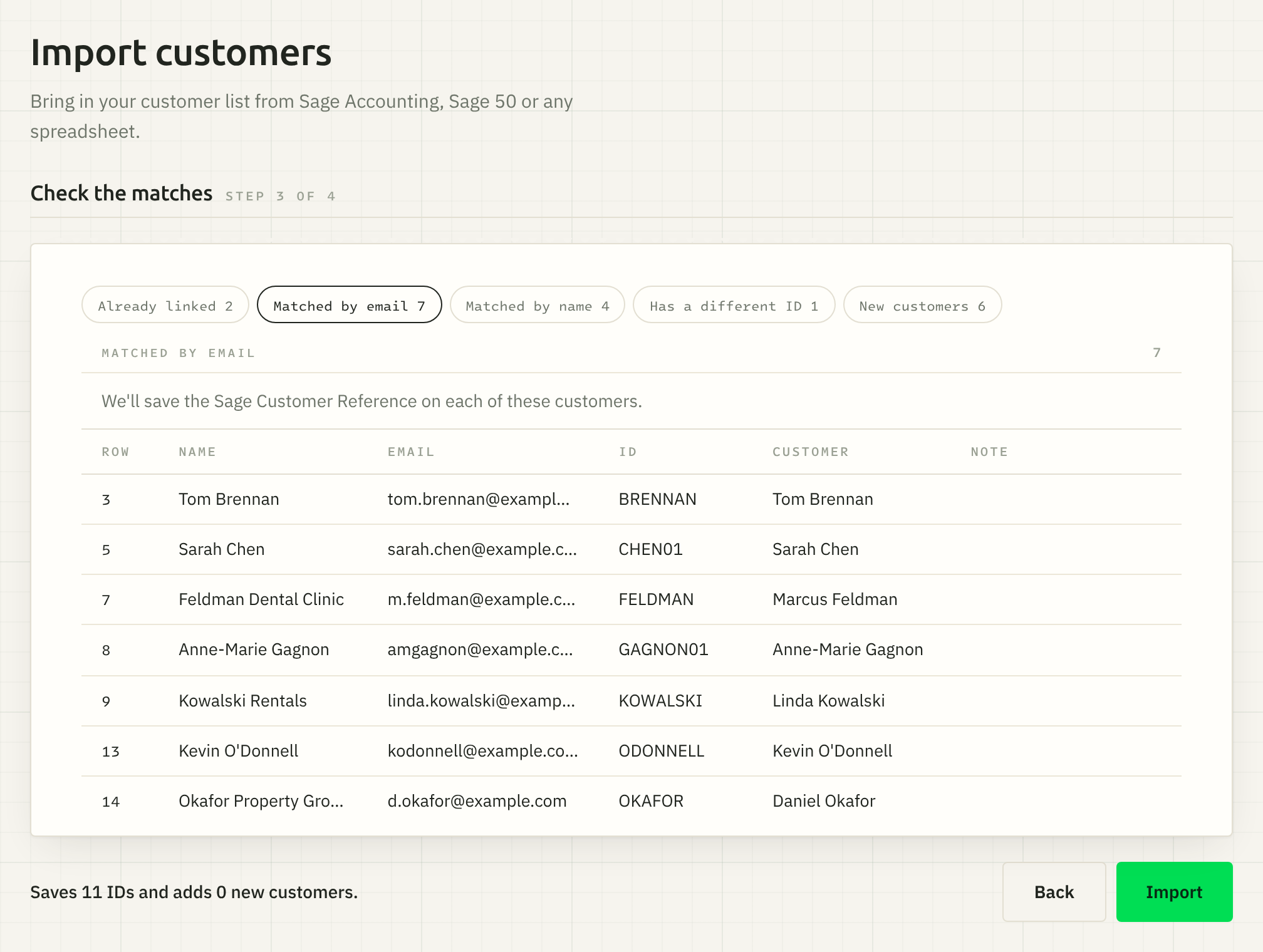
handipay looks for each row's email address first. With no match by email, it tries the name, which has to be the same apart from capital letters, accents and extra spaces. A name written last name first, with a comma, is tried both ways round. For a row with no email, the name has to be the same apart from capital letters and extra spaces. When a name is only close, or more than one customer fits, handipay doesn't guess: the row goes under Pick the customer for you to answer. It only ever looks at your own customers.
Add the customers handipay doesn't have
Rows under New customers aren't on your customer list. The import leaves them out unless you ask for them, and lists them in the download at the end.
To add them, switch on Also add them as new customers before you press Import. Customers with an email get a handipay account under that email. Customers without one are added to your list with no account. handipay doesn't email them.
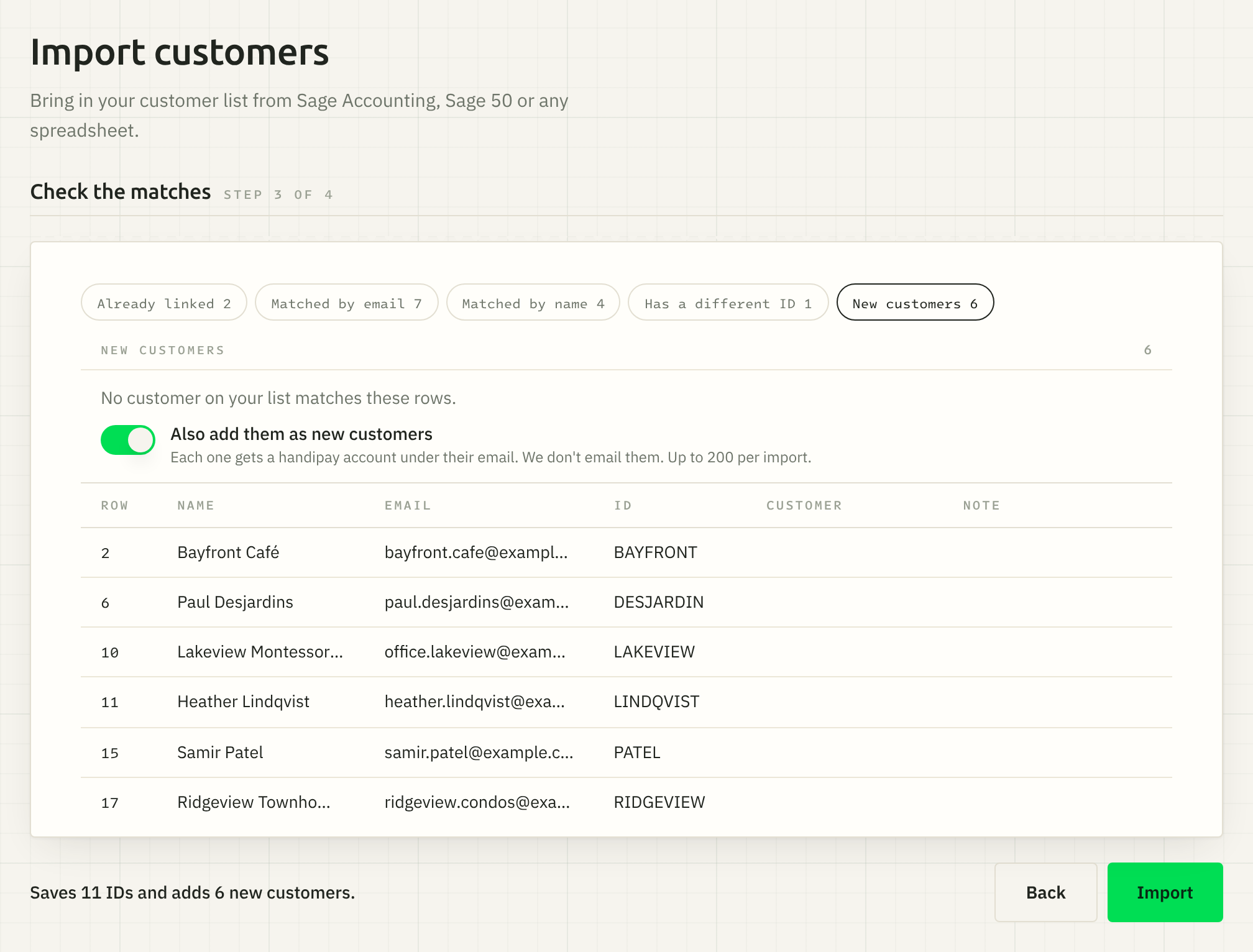
One import adds only so many, so a long list may take more than one run, and there's an hourly limit too. Both are under Limits. To add the rest, import the same file again: the customers added the first time now match, so only the rest are new.
A customer added without an email can get one later, from their page or with a later import. See adding, changing or removing a customer's email.
Save their accounting IDs
When handipay recognizes a Sage Accounting customer list, it picks the ID column for you: the customer reference.
A Sage 50 Canada customer list (the .txt from Export Records) saves each customer's Sage 50 customer name. A customer file from Sage 50 for the United States (CUSTOMER.CSV) saves no ID: its names aren't the ones Sage 50 Canada matches on.
With a file from anywhere else, you can pick an ID column yourself, then choose under This ID is the customer's whether it holds Sage Accounting references or Sage 50 customer names.
A customer who already has a different ID keeps it, unless you tick Replace on that row, or Replace all. New customers you add get their ID too.
To see or change one customer's ID later, see matching your customers to your accounting software.
Limits
- A file can be up to 5 MB.
- One file can hold up to 2,000 customers. Split a longer list into smaller files and import each one.
- One import adds at most 200 new customers: the first 200 in the file that can be added.
- New customers are also limited to 1,000 an hour for each person importing. A very large list may mean waiting before the rest go in: handipay says how long.
- From an Excel file, only the first sheet is read.
Still stuck? Email [email protected].